

TiviMate IPTV


Written by Mr Pro
Practical IPTV guide from Pro-IPTV. Last checked: September 8, 2026.
Installing TiviMate on Firestick, Fire TV, and Android TV
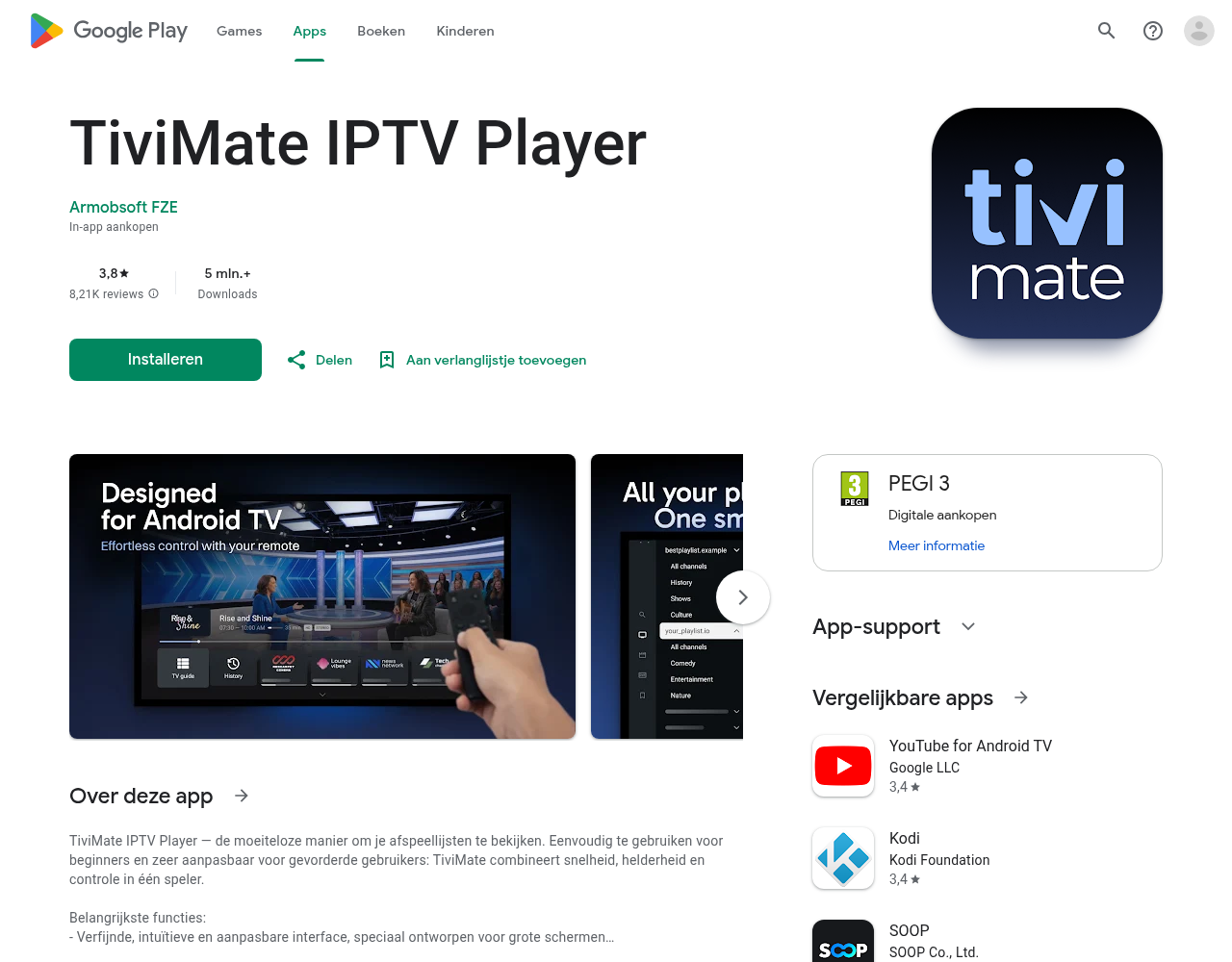
TiviMate is an IPTV player for Android TV, Google TV, and Fire TV. The app itself does not contain channels. You add your own playlist via Xtream Codes, M3U, or another supported method.
TiviMate is especially enjoyable if you use a large screen and a remote control. The program guide, favorites, and layout are more extensive than those of simple players. On Samsung Tizen and LG webOS, TiviMate is not a native solution; consider SmartOne for Samsung or SmartOne for LG.
Before You Start
- A Fire TV Stick, Fire TV, Android TV, or Google TV device with internet.
- An active playlist or provider account.
- Xtream Codes: server address, username, and password, or a complete M3U link.
Installing TiviMate
- Open the official app store on your Android TV, Google TV, or Fire TV.
- Search for TiviMate IPTV Player.
- Check the developer before installing.
- Install the app and open it.
If the app is not in the official store, do not use any random APK site. First, check your device and region. An unknown installation file is not worth the risk.
Adding a Playlist with Xtream Codes
- Open TiviMate and choose Add playlist.
- Select Xtream Codes.
- Enter a recognizable name.
- Enter the server address, username, and password exactly.
- Confirm and wait for the channel groups and EPG to load.
Leave a port number in the server address if provided by your provider. Do not add spaces and do not change http to https without reason.
Adding a Playlist with M3U
- Again, choose Add playlist.
- Select M3U URL.
- Paste the complete link.
- Confirm and give the app time to read the playlist.
An M3U link can be long and sometimes contains login information. Do not share it in a public chat or screenshot.
Setting Up EPG and Favorites
When your provider sends EPG data, it is usually added when the playlist loads. If the guide is empty, refresh the EPG in the settings and check if a separate EPG link is needed. Add frequently used channels to your favorites; this makes a large playlist more manageable.
TiviMate or IPTV Smarters Pro?
| TiviMate | IPTV Smarters Pro | |
|---|---|---|
| Best Device | Android TV and Fire TV | Android, Fire TV, and multiple platforms |
| Control | Extensive control with remote | Simpler for beginners |
| Playlist | Xtream Codes and M3U | Xtream Codes and M3U |
| Smart TV without Android | Not native for Samsung/LG | Model dependent |
Not sure what fits your device? Check the comparison of IPTV apps or the complete Smarters guide.
TiviMate Not Working or Buffering
- First, test YouTube or another streaming app on the same device.
- Check the three Xtream details or the complete M3U link.
- Refresh the playlist and EPG.
- Restart Fire TV/Android TV and the router.
- Use ethernet instead of weak Wi-Fi whenever possible.
- Test multiple channels; one defective stream does not immediately indicate an app issue.
More explanations can be found in our guide on internet, Wi-Fi, and cable for IPTV.
Frequently Asked Questions
Does TiviMate provide channels?
No. TiviMate is just the player. You need your own playlist or provider details.
Can TiviMate be used on Samsung or LG?
Not as a regular native Tizen or webOS app. Use a suitable app from the TV store on those televisions, like SmartOne when available.
Do I need to go Premium?
That depends on the features you need. First, test the basic version and then check the current features and price in the official app environment.
Need help with your device or playlist? Click the Joinchat button at the bottom right.

Recent Comments